HOW TO DEVELOP A KNOWLEDGE BASE
(A TUTORIAL)
GETTING STARTED
The Real-Time Expert System, RTES, is contained in the executable file RTES.EXE.
You may download this file by clicking here
The file you download contains:
- RTES.EXE the executable program
- RTES.HLP the on-line help utility - initiated with Alt-H when RTES is running.
- RTES.CNF a configuration file that contains an access code
- TUTORIAL.TXT this file
- PORT1.CNF a 'quick start' device driver configuration file for IOPLEXER or OPTOMUX
To run this tutorial
- UnZip "tutorial.zip" in a directory (or file folder) C:\RTES
- Open the DOS Prompt window or Command Prompt window (NT)
- Set the default directory with the command CD:\RTES
- Launch RTES with the command : RTES
- You are now ready to use RTES while following this tutorial on your web browser
To exit from RTES hold the Ctrl and click the Home key, then close the Prompt window.
When you exit from RTES the knowledge base files - OLEX.* - will be stored in your working
directory.
LET'S START THE TUTORIAL
As an example we will build "Controlling a room heater" to demonstrate the process of developing a
knowledge base.
The room heater should be turned on when the room temperature drops below a certain minimum
temperature and remain on until the temperature rises above a maximum temperature. When the
room temperature drops again the heater will not turn on again until the temperature drops below
the specified minimum temperature.
The second line from the top (COM>) is the command line. This is where the cursor will be
when you are not editing.
DEFINE THE VARIABLES
For this example you will need the following variables (for simplicity they will be grouped on
the same set of 16 registers):
- analog input for measuring the room temperature : TEMP
- digital output for turning the heater on and off : HEATER
- registers for specifying the minimum and maximum temperatures MIN & MAX
- we will also define a text array to contain some language : H_STATUS
Enter R (the letter R followed by the "Enter" key to display the first register page.
Enter EDIT (or Alt-E) to go into the edit mode. The name area of the first point will be
highlighted.
Enter the names and the text as shown below.
The Tab key will allow you to go from column to column. Be sure to press the Enter key after
each entry.
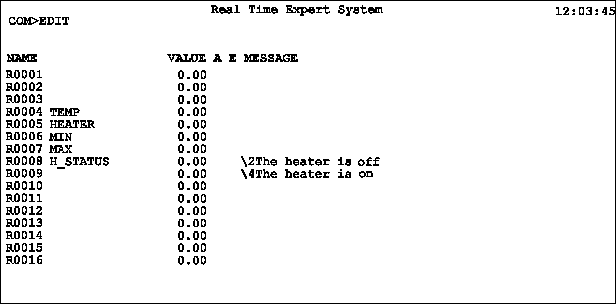
(The \2 and \4 are color attributes.)
We have now finished assigning the point names and defining the text messages that will be used.
To get out of edit mode, press the HOME key
BUILD AN OPERATOR INTERFACE
This phase is not necessary for the operation of our control system, but it will make the testing
easier. We will define the display page where the operator can enter the minimum and maximum
temperatures for control and where the status of the heater is displayed. We'll call the page
CONTROL. To create the display page, enter the command : BUILD CONTROL
You are now in edit mode on a blank screen. You may move the cursor all over the screen using
the arrow keys. You may select the color using F1, F2 and F3. Notice that at the top of the page,
the cursor column location is updated as you move the cursor along. Further tips are displayed by
the help utility (Alt-H).
You type in the text at the places you chose. (See picture below)
To define the dynamic variables : TEMP, MIN, MAX & HEATER, you move the cursor at the
chosen location and press Alt-V.
This key prompts you to define the variable and its format. Use the following syntax:
Variable at Line xx Col yy >TEMP/
Variable at Line xx Col yy >MIN/ NUMBER
Variable at Line xx Col yy >MAX/ NUMBER
Variable at Line xx Col yy >HEATER LIST 2 H_STATUS 40
After each variable definition is typed, you must press the Enter key. Each location containing a
variable will show as a white patch.
Once you have entered all 4 variable definitions, press Home to exit the display editing and return
to command mode.
When we do so, the white patches are replaced by the current values of the variables being
displayed.
If you wish to modify this screen, enter the command EDIT and you are in editing mode.

DEFINE THE RULE
Next we have to define the rule describing the behaviour of the heater. By default all other
conditions define when the heater is off. To enter the rule for HEATER, enter the following on
the command line:
RULE HEATER=(TEMP<MAX)&(TEMP<MIN!HEATER)
This a BOOLEAN AND ARITHMETIC expression that says:
HEATER is true if TEMP is less than MIN and remains true if TEMP is less than MAX.
This is the equivalent of :

You may of course experiment with your own rules. Simply enter the command RULE HEATER,
and RTES will recall the previously entered rule. You may then change it or re-write it entirely. A
rule goes into effect as soon as you enter or re-enter it. Therefore, you can test any modifications
immediately.
TESTING AND DEBUGGING THE RULE
Now we should test that everything is working okay.
Using the Tab key, select the variable you want to change and enter a value.
We should first set MIN and MAX for the minimum and maximum temperatures. (Say 18 and
22)
Then we can change the value of TEMP and watch the behaviour of HEATER.
Since we have not yet connected the analog input to the physical device we can simulate the
room temperature.
Note that the F7 and F8 keys may be used to decrement/increment the selected variable by a
quantity of 1
INTERFACING WITH THE REAL WORLD
Now that you have tested your control system, you can connect up the I/O Subsystem. Devices
drivers are available - and are included in the RTES license - to connect RTES to all popular I/O
subsystems, PLC's, etc. These drivers allow you to associate the RTES variables with the
physical I/O points in the plant. In this example, you would associate a RTD or thermocouple to
the variable TEMP and the contact closure that operates the heater to the variable HEATER.
The RTES.EXE you have downloaded allows you to operate the I/O drivers, without a software
license, for up to 60 minutes. Simply download the device driver(s) of your choice from
[here] and follow the configuration instructions
from the manual. The relevant section of the manual is reproduced
[here] for your convenience.
PLEASE USE CAUTION IF YOU ARE ACTUALLY CONTROLLING EQUIPMENT
WE RECOMMAND THAT YOU DO NOT APPLY POWER TO THE OUTPUT MODULES
UNTIL YOU HAVE GAINED SUFFICIENT EXPERIENCE WITH THIS SOFTWARE
EPILOG
By following the above procedure you have built a simple control system. All it takes for a larger
one is more variables and more rules.
Please note :